
Free and open source
Notepad++, made for the Mac.
The editing engine you know from Windows, in a native app that looks and feels like it belongs on macOS. Keep countless notes open and never save them: they are there the next time you open it.
Version · macOS 14 or later · All releases
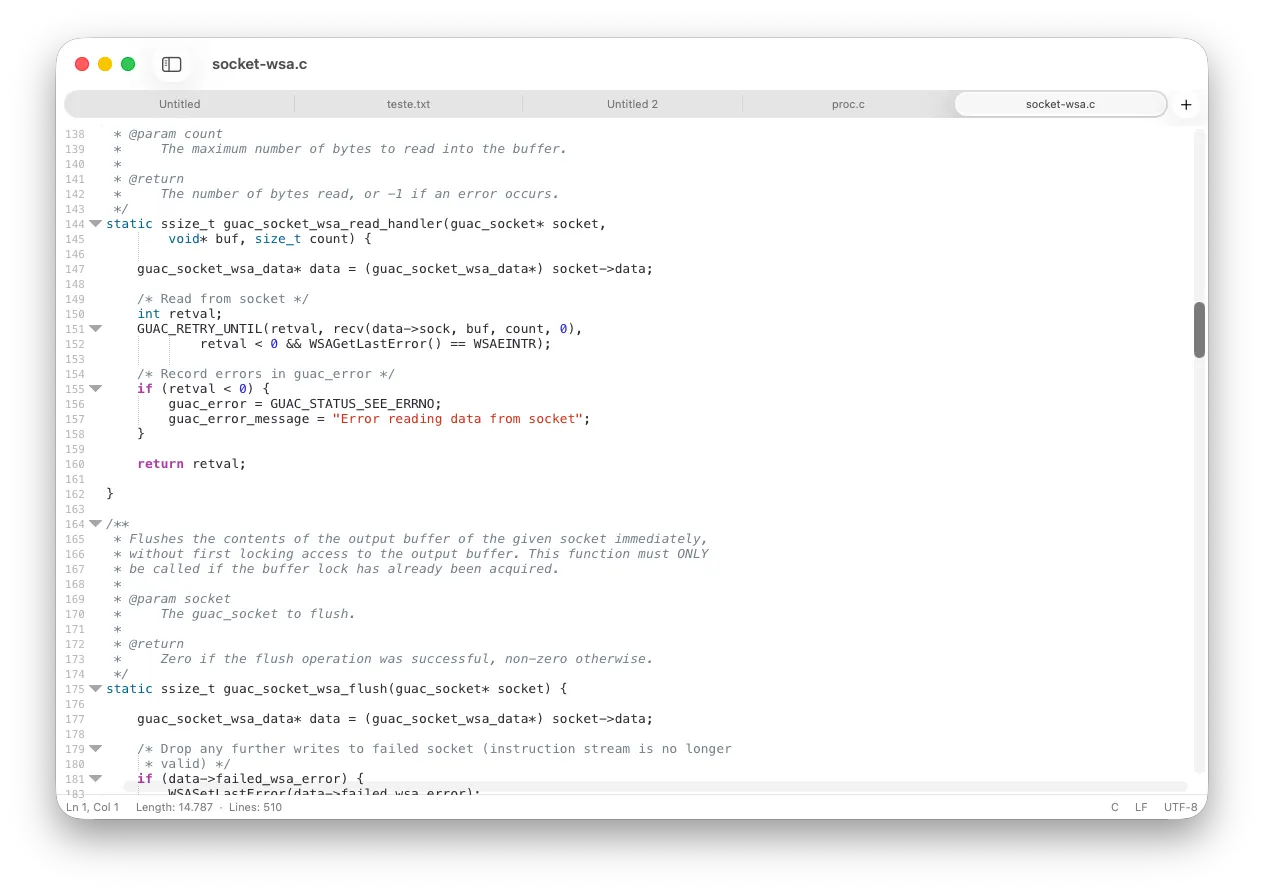
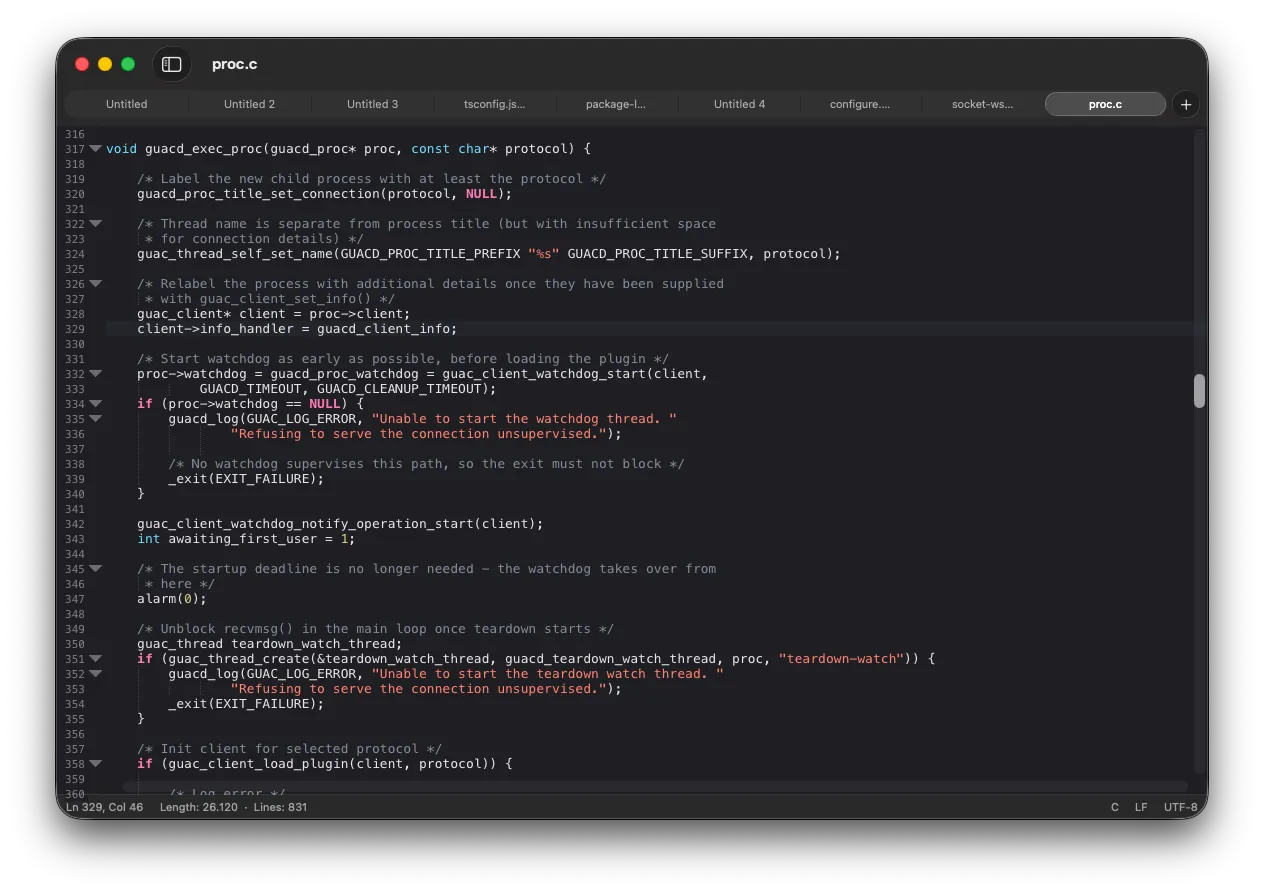
Everything you missed, nothing you didn't
Built on Scintilla and Lexilla, the same components that power Notepad++.
Never lose a note
Quitting never asks to save. Open tabs, unsaved changes and untitled documents come back on the next launch.
~95 languages
Syntax highlighting with keywords imported from Notepad++, plus folding and brace matching.
Find & Replace
Match case, whole word and regular expressions, with live match count and highlighting.
Multiple carets
Edit in several places at once, or select columns with ⌥-drag.
Folder Workspace
A live file tree of one or more folders in the sidebar, with drag and drop.
Function List
Notepad++'s parsers for 38 languages, plus Swift, Go and Markdown, grouped by class.
Native tabs and themes
Light and dark themes that follow the system and its accent colour, plus a Mac OS 9 Classic theme.
Encodings handled
Detects UTF-8, UTF-16 and Windows-1252, converts between them and keeps your line endings.
Yes, but why?
When I moved to macOS, most of the apps I used on Windows were available, but I couldn't find a simple alternative to Notepad++. Every app I tried was either too complex or too simple.
And being able to keep countless notes open without ever having to save them, the feature I missed the most, was practically nonexistent elsewhere. So I built it (with Claude's help).
— Claudio Azevedo, creator of MacPad++

Download
Pick the version for your Mac. Both are the same app.
Version · macOS 14 or later · What's new
Opening it the first time
MacPad++ is not notarized by Apple yet, so macOS blocks the first launch. Open System Settings ▸ Privacy & Security and click Open Anyway. You only need to do this once.